today see Raspberry Pi release
new OS
Debian Trixie
setup
temporary RPI fix IP
VNC login
more setup
drive speed
SAMBA
DOCKER install
portainer
opencloud
file browser
NGINX
Arduino IDE
Mosquitto server
Node-Red server
use SQLite in Node-red and tools like SQLite CLI and SQLite browser
try RUST
Debian Trixie
3.10.2025
see
Raspberry Pi OS trixie available
setup
try on RPI4
( use USB3 / ORICO 10Gbps TCM2-C3 adapter with a M2-SSD 256GB w. Raspberry Pi OS Debian Bookworm )
headless only ( means i use UBUNTU 25 PC with VNC Viewer to RPI4 desktop )
plug in a temporary 8GB uSD card
and start the / menu / Accessories /
RPI Imager
and burn new Raspberry Pi OS 64bit ( Trixie ) to uSD.
temporary RPI fix IP
to avoid search for IP after initial boot:
then ( uSD out / in ) see /media/pi/bootfs
edit cmdline.txt ( i use terminal 'sudo mc' [F4] 'nano')
add inside first line
ip=192.168.1.104
( check have [space] before and after )
now reboot ( my RPI4 automatic uses uSD if avail ) ( and wait long time for setup )
login via PC terminal:
ssh pi@192.168.1.104
sudo raspi-config
/ Interface options / I3
+ enable VNC
now can use PC's VNC viewer again to new Trixie desktop.
sudo nano /boot/firmware/cmdline.txt and change back the fix IP there
and make fix IP better way
sudo nmcli c show
sudo nmcli c mod 'Wired connection 1' ipv4.addresses 192.168.1.104/24 ipv4.method manual
sudo nmcli con mod 'Wired connection 1' ipv4.gateway 192.168.1.1
sudo nmcli con mod 'Wired connection 1' ipv4.dns "10.10.30.1 8.8.8.8 8.8.4.4"
( if used Raspberry Pi Imager and configured WiFi connection there, that's entry-name will be 'preconfigured' )
sudo nmcli c mod 'preconfigured' ipv4.addresses 192.168.1.204/24 ipv4.method manual
sudo nmcli con mod 'preconfigured' ipv4.gateway 192.168.1.1
sudo nmcli con mod 'preconfigured' ipv4.dns "10.10.30.1 8.8.8.8 8.8.4.4"
restart
sudo apt update && sudo apt upgrade -y
VNC login
now copy new OS from uSD to USB drive:
( well, could be possible via terminal too but desktop menu more easy )
menu/Accessories/
SD Card Copier
from: /dev/mmcblk0
to: /dev/sda
make new UUID
( overwrite old Debian Bookworm system on USB drive )
shutdown / power off / remove uSD / power on /
more setup
install some usual tools
sudo apt install gparted fastfetch tree mc hdparm nmap
mkdir Projects
in Desktop taskbar enable [CPU][CPU temp]
check out the
drive speed
sudo apt install -y hdparm
sudo hdparm -t /dev/sda2
/dev/sda2:
 Timing buffered disk reads: 958 MB in 3.09 seconds = 309.98 MB/sec
not bad for a RPI4
while on uSD it was
sudo hdparm -t /dev/mmcblk0p2
/dev/mmcblk0p2:
 Timing buffered disk reads: 132 MB in 3.03 seconds = 43.60 MB/sec
_______________
compare with my
PCIe3 PC M2-SSD:
sudo hdparm -t /dev/nvme0n1p2

/dev/nvme0n1p2:
Timing buffered disk reads: 4922 MB in 3.00 seconds = 1640.66 MB/sec
here my
PCIe4 PC M2-SSD:
Timing buffered disk reads: 6800 MB in 3.00 seconds = 2266.32 MB/sec
_______________
optional use the
--direct with the hdparm command
see
man hdparm
- - but i run into problems with that new fast USB SSD drive for RPI:
try new OS Debian Trixie
on hardware:
RPI 4B
ORICO TCM2-C3 - NVMe M.2 SSD ENCLOSURE (10Gbps) (RED)
WD_BLACK SN770 250GB
sudo hdparm -t --direct /dev/sda2
test PCIe4 PC USB 3.1 ____ 420.86 MB/sec
test from RPI4 USB 3.0 ___ 312.47 MB/sec
test RPI4 uSD shows ______ 40.17 MB/sec
but orico 'cooler' get very hot
and VNC RPI4 desktop freeze
and file problems like
file delete / reinstall / see directories but not the files /
? looks like a serious corruption of the file tables ?
but after full burn from uSD again it looks ok
so if the SSD is bad i need a new one ( it actually was a new, free one as a WD warranty replacement ),
or if it is good, but stops working in that adapter because of heat?
or ( good answer from RPI forum
ejolson:
because Pi 4 tends not to have enough power for a high-performance SSD
what can i do?
my understanding is that SN770 is a PCIe4
but that might be no use if connected to USB 3.0 anyhow ?
could it be better to buy a PCIe3 M2 SSD ? might that REDUCE the heat ?
to compare with my older drive:
i run for a year ( on that RPI4 and same PS )
WD Blue SN570 250GB
in a older orico enclosure ? same model (but with UGREEN USB adapter USB-C to USB-A )
without problems and
just tested in RPI4 with 232.96 MB/sec
and from USB 3.1 with 349.98 MB/sec
need to test that SSD and also buy a PCIe3 SSD?
SAMBA
mkdir ~/Desktop/share
sudo apt install -y samba
sudo nano /etc/samba/smb.conf
#add after [homes] before [printers]:
[RPI4_share]
path = /home/pi/Desktop/share
writeable = yes
browseable = yes
public = no
sudo smbpasswd -a pi
pw
pw
sudo systemctl restart smbd
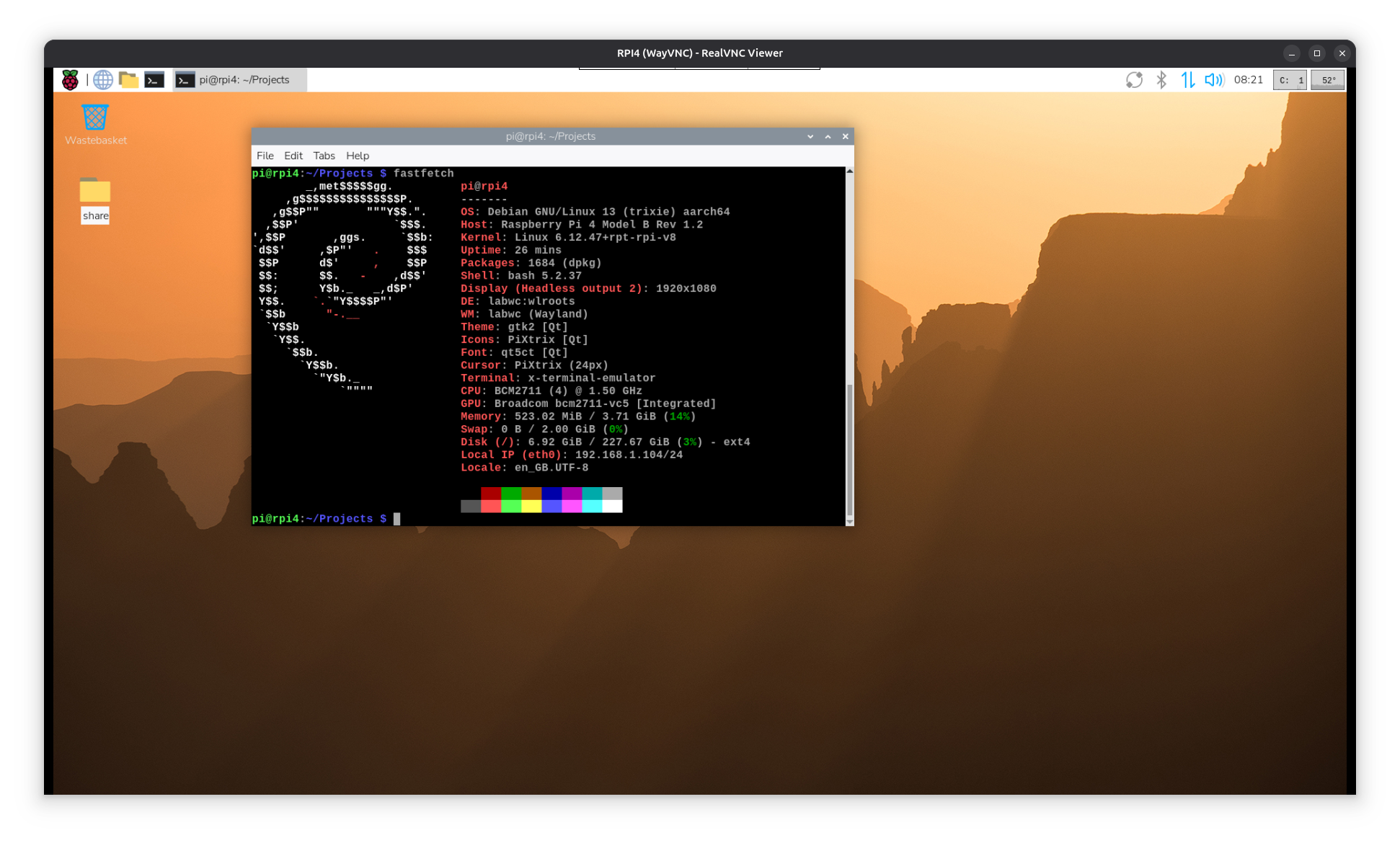
( and test from PC )
DOCKER install
curl -fsSL https://get.docker.com -o get-docker.sh
sudo sh get-docker.sh
now can use my alias
dinfo
and for maintenance install
portainer
sudo docker volume create portainer_data
sudo docker run -d -p 8000:8000 -p 9443:9443 --name portainer --restart=always -v /var/run/docker.sock:/var/run/docker.sock -v portainer_data:/data portainer/portainer-ce:lts
try browser:
https:192.168.1.104:9443 ( accept risk... )
setup:
user: admin
pw: < adminpw> ( requires 12 char long )
instead of
nextcloud i want try
opencloud
i see
here
better use
opencloud or try
this way
mkdir -p $HOME/opencloud/opencloud-config
mkdir -p $HOME/opencloud/opencloud-data
and a manual docker run command
initialize
sudo docker run --rm -it -v $HOME/opencloud/opencloud-config:/etc/opencloud -v $HOME/opencloud/opencloud-data:/var/lib/opencloud -e IDM_ADMIN_PASSWORD=admin opencloudeu/opencloud-rolling:latest init
start
sudo docker run --name opencloud --rm -d -p 9200:9200 -v $HOME/opencloud/opencloud-config:/etc/opencloud -v $HOME/opencloud/opencloud-data:/var/lib/opencloud -e OC_INSECURE=true -e PROXY_HTTP_ADDR=0.0.0.0:9200 -e OC_URL=https://192.168.1.104:9200 opencloudeu/opencloud-rolling:latest
LAN browser:
https://192.168.1.104:9200
admin
admin
add text file 'setup.txt' under personal and try to find it:
~/opencloud/opencloud-data/storage/users/users/1dcf5064-da70-4910-955a-0693fd5f9350/setup.txt
file browser
now that 2 things i play with
- - OMV ( on RPI3 needed a .lite image and a extra drive ( i used manual partition ) )
- - open cloud / next cloud ( via docker .. )
sure have their use, but also lots of overhead ( security / multi-users environment... )
and with that actually CAN NOT just access your usual work dir via browser
i not need, i have on RPI a
/home/pi/Projects/ directory for work
and can serve it inside LAN with
samba
if i want use the browser BUT NOT above different path structure
try ( on docker ):
DOCKER
GIT
filebrowser.org
get the newest image
sudo docker pull filebrowser/filebrowser:v2-s6
sudo docker run -d --name filebrowser --restart=always -v /home/pi/Projects:/srv -v /home/pi/.filebrowser:/database -v /home/pi/.filebrowser:/config -e PUID=$(id -u) -e PGID=$(id -g) -p 8088:80 filebrowser/filebrowser:v2-s6
http:192.168.1.104:8088
hm, no info about first login? admin admin not work
admin random password?? how to find? suggested:
sudo docker logs filebrowser
and
cat /home/pi/.filebrowser/settings.json
not help
so delete container and these files filebrowser.db and settings.json ( to get a clean .init )
and setup again, now see
sudo docker logs filebrowser
2025/11/14 12:44:57 Warning: filebrowser.db can't be found. Initialing in /database/
2025/11/14 12:44:57 Using database: /database/filebrowser.db
2025/11/14 12:44:57 Using config file: /config/settings.json
2025/11/14 12:44:57 Performing quick setup
2025/11/14 12:44:57 User 'admin' initialized with randomly generated password: 9k5xMoz4QwRNEGY7
2025/11/14 12:44:58 Listening on [::]:80
and that login worked
now in 'admin'
can set new password !must be 12 char long!
so yes there you could now also create other users with different roles... NOT NEED
the main objective to handle your work dir via browser is working!
install
NGINX
in a docker container
prepare a user dir:
/home/pi/Projects/nginx/
and make a index.html file in it ( containing minimal a text line ) .
setup docker NGINX:
sudo docker run -it --restart unless-stopped -d -p 8080:80 --name web -v ~/Projects/nginx:/usr/share/nginx/html nginx
and call it from other network browser via:
http://192.168.1.104:8080/
i copy in my previous 'webwork' project where i use RPI2 RPI3 for, see also
Learn Web
my hobby / work includes
+ micro controller like RPI PICO / ESP32 / not Arduino anymore
+ + make web server and telemetry projects
+ + + MQTT
for that need development tools like
Arduino IDE
if that is my new work system i need a lot more tools,
and as i just was lucky setting up Arduino IDE 2.3.6 on Ubuntu 25.10 PC
i try again here, prior i only used old version, but still i not find a ARMversion, GRRR ok old version again
cd Downloads
wget https://downloads.arduino.cc/arduino-1.8.19-linuxaarch64.tar.xz
unzip here
tar -xvf arduino-1.8.19-linuxaarch64.tar.xz
cd ~/Downloads/arduino-1.8.19
sudo ./install.sh
reboot
Mosquitto server
Mosquitto broker install ( with user and password )
i follow https://raspberrytips.com/mqtt-broker-raspberry-pi/
sudo apt install mosquitto mosquitto-clients
sudo systemctl enable mosquitto
sudo mosquitto_passwd -c /etc/mosquitto/pwfile uPICOW
now that ask you for password twice:
pPICOW
pPICOW
sudo chmod 0700 /etc/mosquitto/pwfile
sudo chown mosquitto:mosquitto /etc/mosquitto/pwfile
sudo nano /etc/mosquitto/mosquitto.conf
and add :
listener 1883
allow_anonymous true
OR
listener 1883
allow_anonymous false
password_file /etc/mosquitto/pwfile
sudo systemctl restart mosquitto
for check:
sudo service mosquitto status
journalctl -xeu mosquitto.service
sudo cat /var/log/mosquitto/mosquitto.log
in a local RPI4 test open first terminal and try
LISTENER:
mosquitto_sub -h localhost -u "uPICOW" -P "pPICOW" -v -t "#"
and do also MQTT
OPERATION ( like in a second terminal ):
mosquitto_pub -h localhost -u "uPICOW" -P "pPICOW" -t "PICOW/D215/set" -m "R1ON"
mosquitto_pub -h localhost -u "uPICOW" -P "pPICOW" -t "PICOW/D215/set" -m "R1OFF"
MQTT explorer
better on PC install for monitor and test
mqtt-explorer.
Node-Red server
bash <(curl -sL https://raw.githubusercontent.com/node-red/linux-installers/master/deb/update-nodejs-and-nodered)
yes
RPI tools YES
i select:
file YES
security NO ( no login password required only for my development station )
projects YES
manually commit changes no
default
load modules YES
______________________________
check:
cat /var/log/nodered-install.log
sudo systemctl enable nodered.service
sudo systemctl restart nodered.service
or reboot
check in browser:
http://192.168.1.104:1880/
first need to create a 'project' ( as we enabled it )
like 'test'
( for backup reasons i use NOT ENCYPTED )
now, on a fresh NR install
* dashboard and
* sqlite
need to be added like:
Menu - Manage palette option and search for node-red-dashboard and sqlite
UPS: both modules i used are out of date, need to upgrade
as test make a
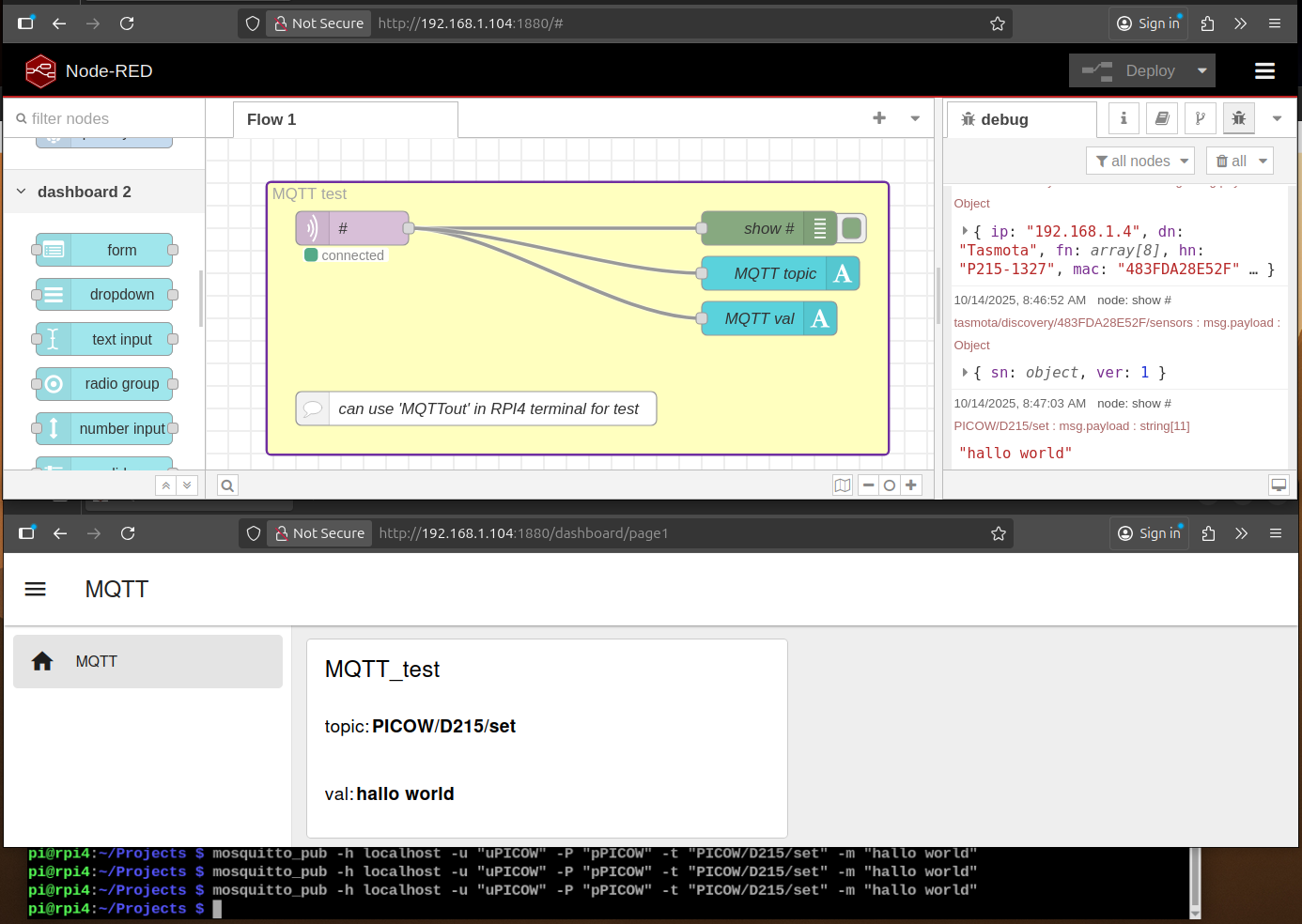
[MQTTin] -- [debug]
configuring RPI4 broker with password and listen topic
#
( i have a sonoff s31 flashed with TASMOTA and sending MQTT to RPI4 live in my WiFi LAN )
+ use MQTT explorer or RPI4 terminal for test publish
here like test NR dashboard 2 ( @flowfuse/node-red-dashboard )
and MQTT in show
regarding database possibly go for
influxdb node
install from 'Manage Palette' menu
and how to get that database?
install on RPI directly or containerized?
influxdb
influxdb rpi4
influxdb docker
and sure RESTORE the NR project backup from old RPI4 drive
so here i am unsure if i can just overwrite the project dir with the backup...
so better try small manual steps:
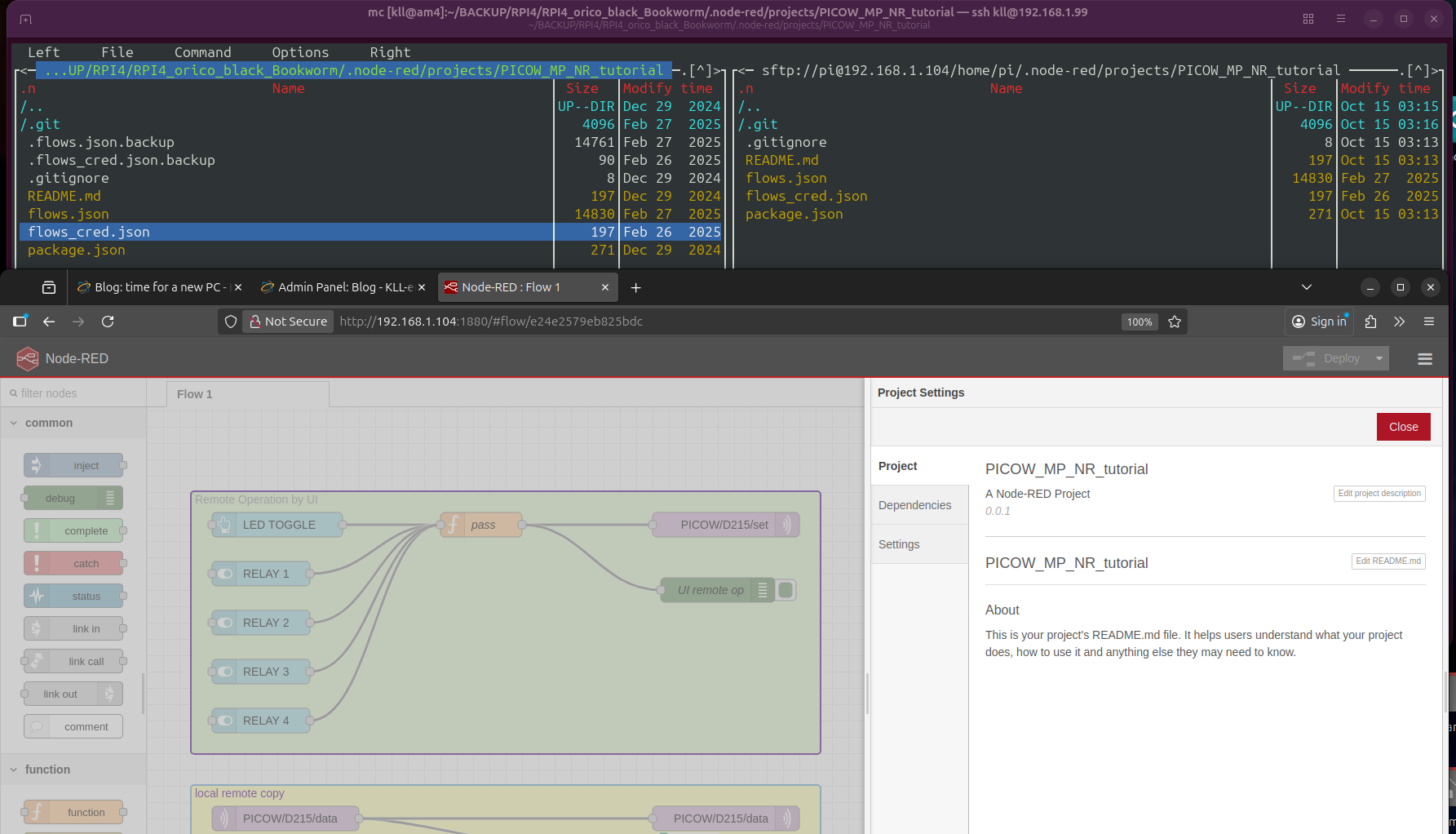
via a LAN work environment:
on new AM5 Ubuntu 25.10 PC
* browser window to this RPI4 Node Red editor
http://192.168.1.104:1880/#
go project / new / and create manually all old projects
* in terminal window
login BACKUP PC AM4 Ubuntu server
ssh kll@192.168.1.99
< pw>
open MC
( left side select backup dir of old RPI4 )
( right side use SFTP login RPI4 ~.node-red.projects )
now in MC make a test copy of the 2 config files
flows.json
flows_cred.json
and in online editor force a full deploy
looks good
+ + dashboard page show and
+ + nodes connect local and remote MQTT broker
means file copy is OK
i not have to go the 'safe' way of importing that flows manually ( what would do a check of all nodes )
Note:
Node-Red setup and project copy
-1- NR install with projects and manually setup project no encription
-2- copy flow files
-3- install dashboard and sqlite
-4- if project copy from GIT need adjust MQTT broker connection ( link / password )
-5- for sqlite db:
-5.1- make the correct path by filemanager where NR expects the sqlite DB file will be
-5.2- in all flows what use a sqlite db table click on "make table"
use SQLite in Node-red and tools like SQLite CLI and SQLite browser
if you want to look into a db file where your historic data will be:
sudo apt install sqlitebrowser
sudo apt install sqlite3
see
sqlite.org CLI
or use it from Python3
update 20.10.2025
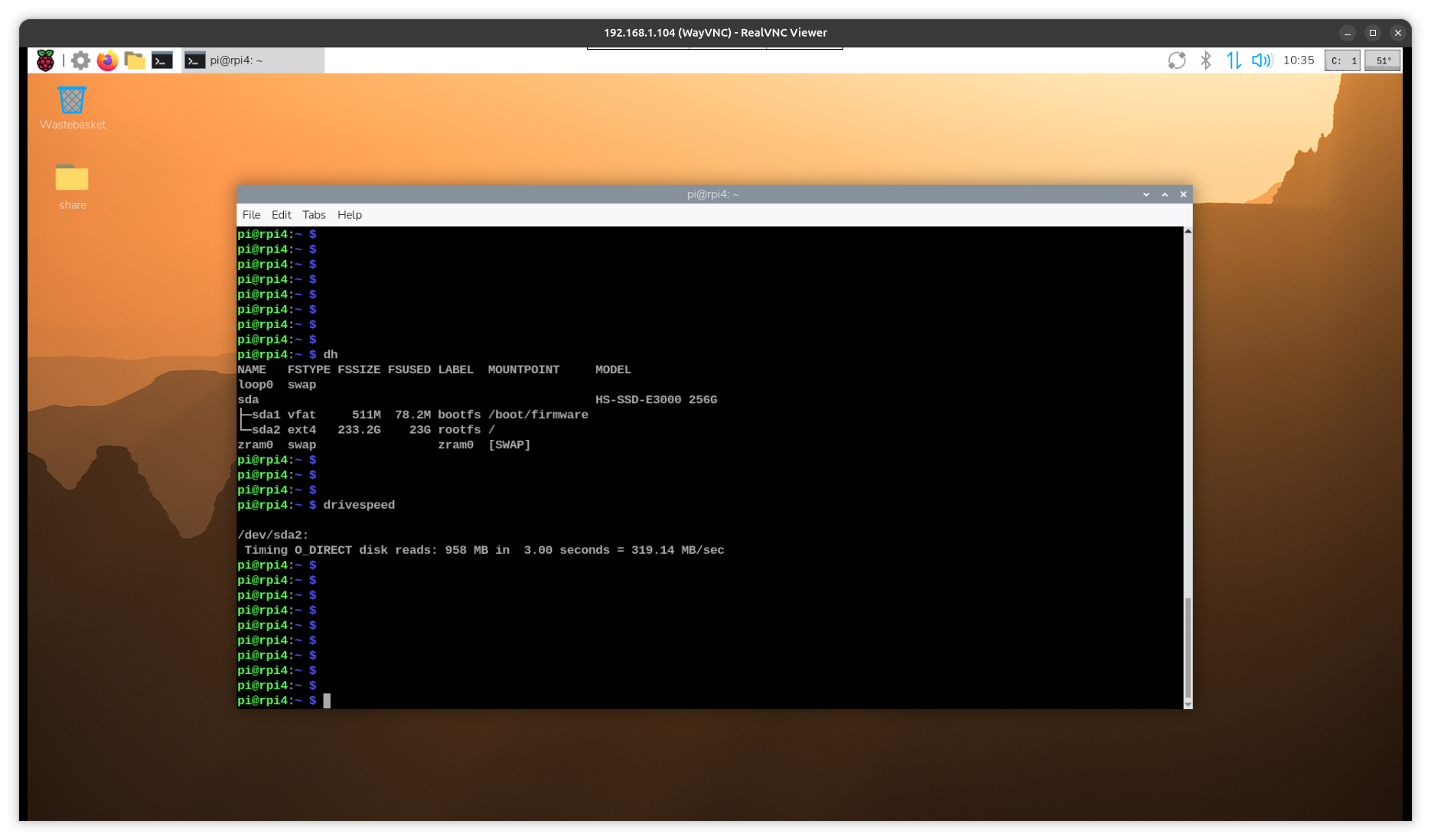
now the external ORICO red USB M2-SSD box has a new ( slower / cooler ) drive / PCIe3
SSD M.2 PCIe (3.0) 256.GB (3Y) HIKSEMI CITY SSD E3000(STD) (HS-SSD-E3000 256G) for 670THB / 17.65EUR
Sequential Read 3,230 MB/s // Sequential Write 1,240 MB/s
test from RPI4 USB 3.0:
sudo hdparm -t --direct /dev/sda2
only 300 .. 330 MB/s
copy in a project backup from the external ORICO black USB M2-SSD box ( with the old RPI OS )
so i can format that drive.
restart Node-red work
select last project 'PICOW_MicroPython'
setup in Node-red sqlit3
manage palette: node-red-node-sqlite ( v 1.1.1 )
and make a directory path
/home/pi/Projects/PICO_W/
needed for the database
and force deploy FULL and restart FLOWS
in flow 'save to db' and flow 'log db'
click on setup node
'create table ...'
and reboot RPI4
now shoud see
/home/pi/Projects/PICO_W/data.sqlite3 ( created and written by the 'create table' action )
for some operation first need to create entries in the project database ( MultiSite Dashboard V271 )
dashboard: [Project List]
[ADD] [UP] (id 1)
modify entries and [ENTER]
name:
topic:
remark:
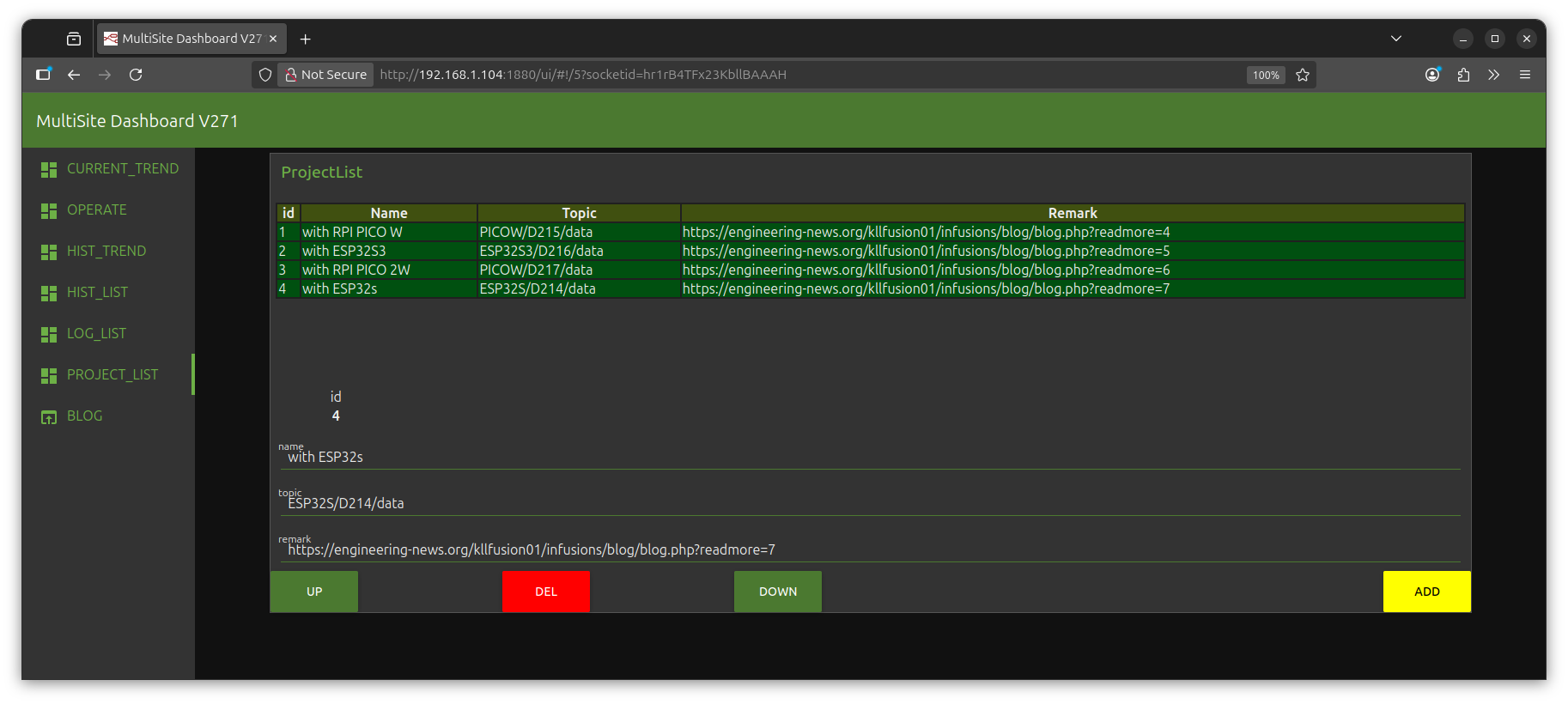
also need to check the 2 nodes what select the topics that are to be stored from the MQTT stream.
so it's time to bring the RPI PICO W online
+ just plug it into chrger OR
+ in this PC USB port ( so can use Arduino IDE 2 to develop )
anyhow already see data ( using at first on PC MQTT explorer )
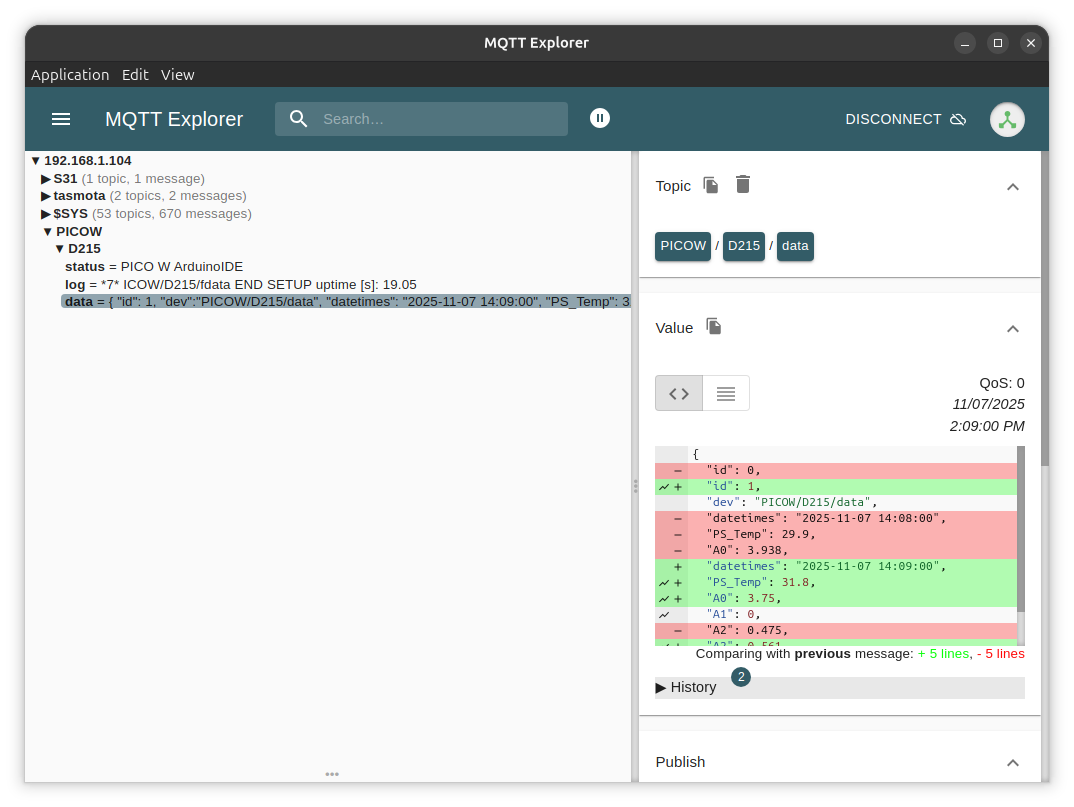
now check RPI4 Node-Red with that project enabled and see:
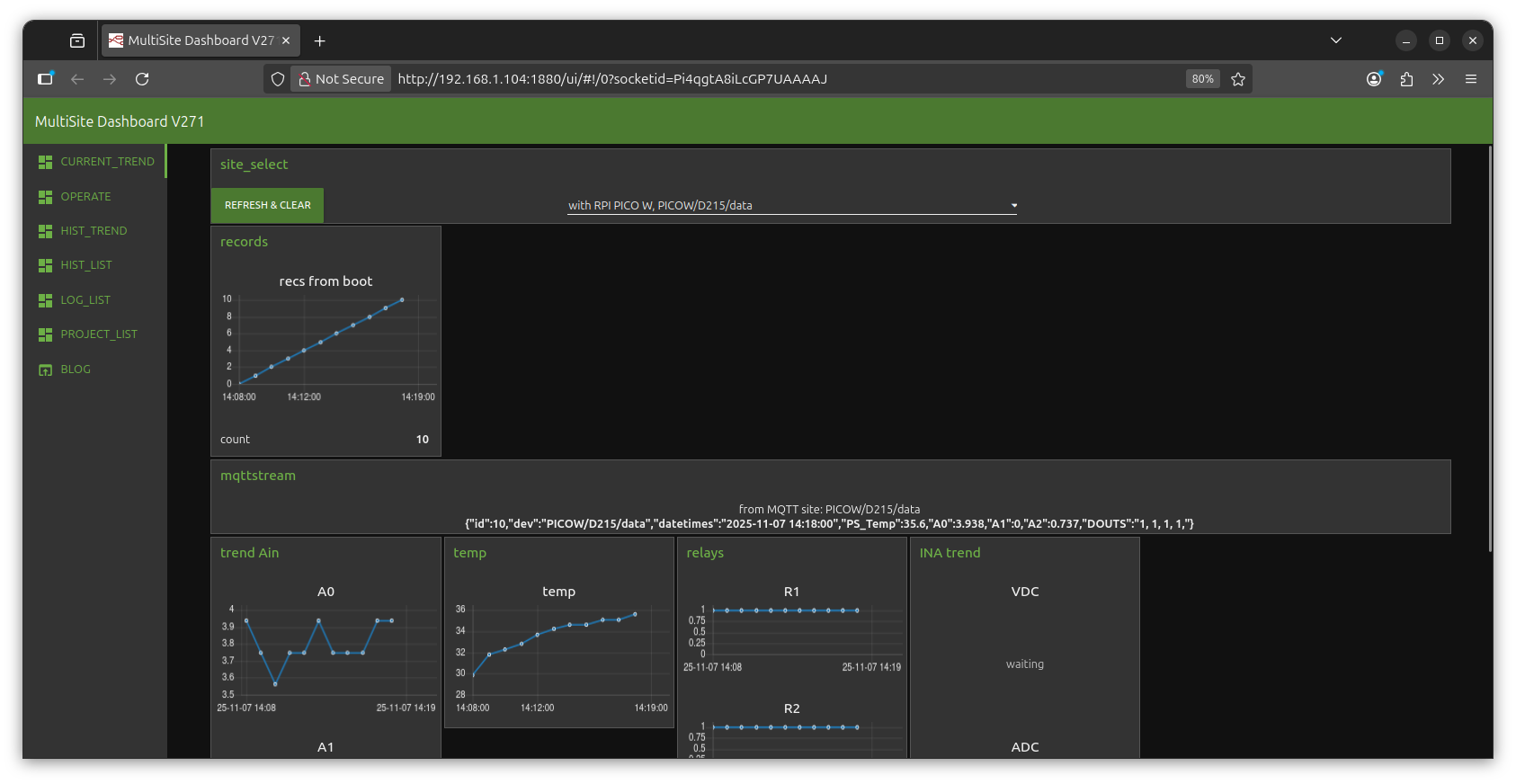
next step is the new network setup:
the RPI4 has Ethernet through a D-Link 100 HUB so only 100Mbps instead tested 2xxMbps when connected to router directly
see at new PC BLOG
try RUST
follow
geeksforgeeks
youtube video
curl https://sh.rustup.rs/ -sSf | sh
[Enter] or [1][Enter]
. "$HOME/.cargo/env"
restart
pi@rpi4:~ $ rustc --version
rustc 1.91.0 (f8297e351 2025-10-28)
pi@rpi4:~ $ cargo --version
cargo 1.91.0 (ea2d97820 2025-10-10)
local VScode install
+ + remote SSH and connect RPI4
+ + rust-analyzer
+ + codeLLDB
+ + Even Better TOML
+ + dependi
+ + Error Lens
and open remote terminal to create RUST project:
pi@rpi4:~/Projects/RUST $
cargo new show_os
cd show_os
cargo run
cd src
edit
main.rs
happy coding!
Rust cheat sheet
Rust play ground
just read about
RUST ( and
VScode ) used on a RPI
( that two i have already installed on RPI4 )
to program a RPI PICO
i would like to try that with my unused
RPI PICO 2 W
is that
Zephyr thing the new
Arduino IDE or more?
video
RPI news
i make a other new setup, but test something different regarding Mosquitto & Node-Red & HISTORIC TREND,
pls follow me to
TRIXIE POWER METER
