RPI Docker
Posted by kll on February 10 2026 09:00:26
Docker for Raspberry Pi for adding web-services and other work environments the clean way
( i try on RPI3 and RPI4 )
after setup RPI4 like here
i use Docker for install a web-server NGINX
to serve my HTML / JS / Processing examples from Learn WEB
and to learn more about Docker
and to use it to keep a setup clean while handle test installations..
work inside home LAN only,
for real REMOTE ACCESS to RPI ( like VNC in Chrome browser )
for when you are "one the road again"
use Raspberry Pi Connect
Extended Blog
Docker
via CasaOS
Docker
prepare the RPI for use Docker
now 3 manual steps
* Docker
* Portainer
* Nginx
but if you are sure you need
* docker and
* web-tools and
* IOT tools
you might here start with IOT STACK to do it all menu-driven
curl -fsSL https://raw.githubusercontent.com/SensorsIot/IOTstack/master/install.sh | bash
but first time, here we do it manually:
Docker
to
install Docker
on RPI4 Desktop newest setup:
Update your system first
sudo apt update && sudo apt upgrade -y
Download and run the install script
curl -sSL https://get.docker.com | sh
sudo usermod -aG docker $USER
so NOT need 'sudo' for docker commands
now can use alias dinfo in
nano .bash_aliases
dinfo='echo "___ INFO" && docker info && echo "___ CONTAINER" && docker ps --all && echo "___ IMAGES" && docker images && echo "___ NETWORKS" && docker network ls && echo "___ VOLUMES" && docker volume ls'
and for maintenance install
portainer
sudo docker volume create portainer_data
sudo docker run -d -p 8000:8000 -p 9443:9443 --name portainer --restart=always -v /var/run/docker.sock:/var/run/docker.sock -v portainer_data:/data portainer/portainer-ce:lts
try browser:
https://192.168.1.104:9443 ( accept risk... )
setup:
user: admin
pw: < adminpw> ( requires 12 char long )
well, for not forget that you have installed docker and portainer on your RPI4
better tell at every login via same .bash_aliases
a link like http://myIP:myPort
printed to terminal
* can be copied ( for remote browser ) or
* used to open local browser in desktop via context menu 'OPEN URL'
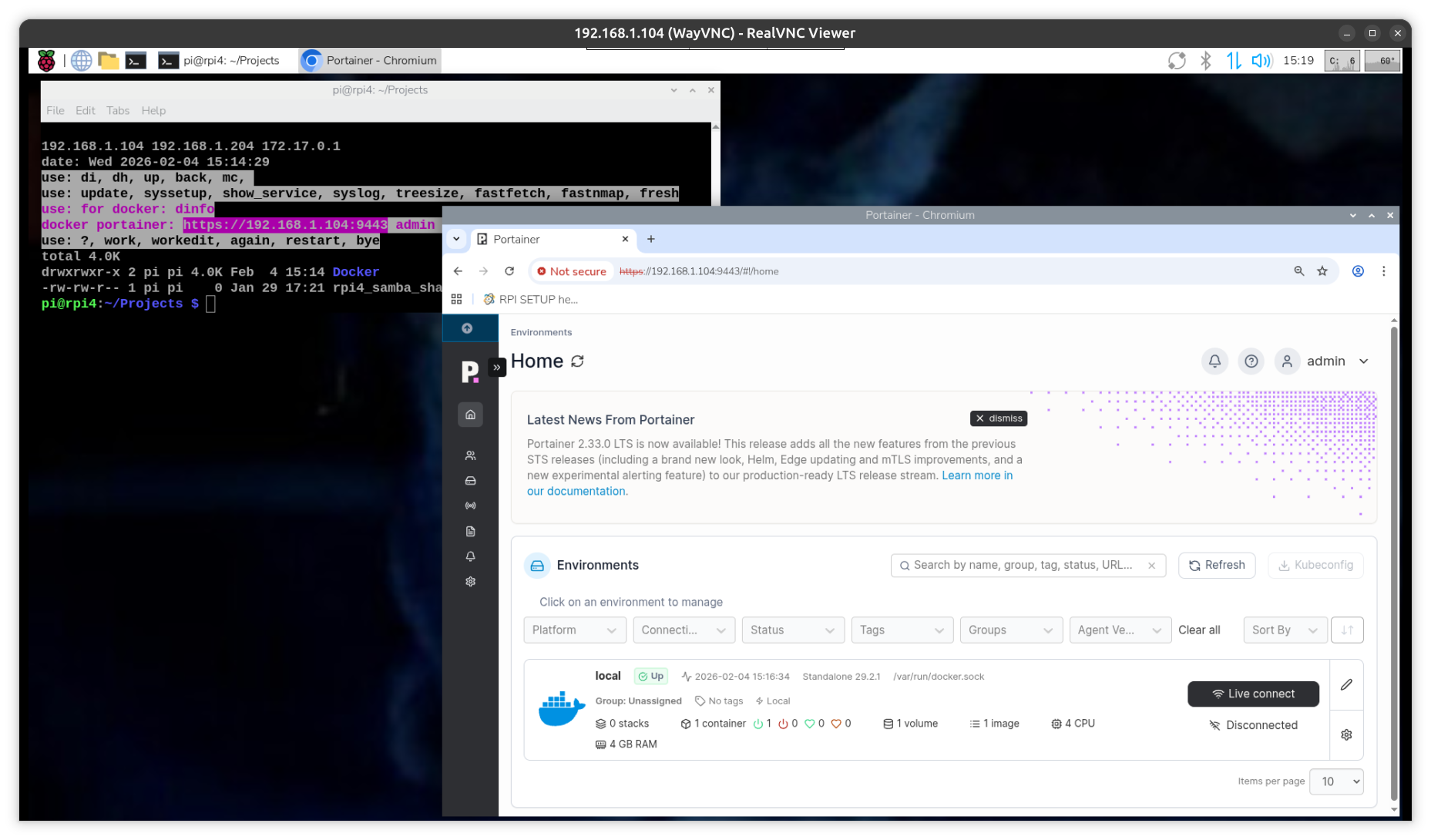
try
Docker CLI tutorial BASICS
after that understanding can try to use 'portainer' to create containers.
try:
[local (live) ]
[Templates] [Application]
...
now you see already many containers you could install,
but pls check:
[Settings]
[Add Templates]
URL https://raw.githubusercontent.com/pi-hosted/pi-hosted/master/template/portainer-v2-arm64.json [enter]
and get all the good stuff for RPI
already do some initial setting in portainer
[Environments][details]
Name:
i change from local to RPI4
Public IP:
192.168.1.104
[Update Environment]
NGINX webserver Container CLI setup
if you need to test some web-work on local network need to run a web-server
prepare a user dir:
mkdir /home/pi/Projects/nginx/
cd /home/pi/Projects/nginx/
and make a
nano index.html
file in it ( containing minimal a text line ) .
setup docker NGINX web-server:
sudo docker run -it --restart unless-stopped -d -p 8080:80 --name web -v ~/Projects/nginx:/usr/share/nginx/html nginx
and call it from other network browser via:
http://192.168.1.104:8080/
for remote copy/edit of web-content ( index.html ... )
can use above SAMBA file share.
RPI via browser
while we are using this RPI4 headless from a PC
* remote SSH terminal
* remote VNC desktop
add now with the docker /
* portainer
* nginx
web services
we might want optional use also web services for OS operations,
not because it is better,
but if we play from some restricted device like a Chromebook / a smart TV / a android tablet
where we need to do ALL via a browser.
* a web-terminal
cockpit
sudo apt install cockpit
from browser try:
https://192.168.1.104:9090
see lots of info about your Pi,
and also a terminal
( but sadly some info pages just flicker ( refresh constantly? )
* a web-file-manager
filebrowser
sudo docker run -d --name filebrowser --restart=always -v /home/pi/Projects:/srv -v /home/pi/.filebrowser:/database -v /home/pi/.filebrowser:/config -e PUID=$(id -u) -e PGID=$(id -g) -p 8088:80 filebrowser/filebrowser:v2-s6
docker logs filebrowser
and find the default admin login password
http://192.168.1.104:8088
now after login in 'admin'
can set new password !must be 12 char long!
the good thing about container is you can play with many things without risking your setup system,
* get any image, like from
Docker Hub
* make a container
* * PLAY
* stop container
* delete container
* delete image
( via CLI or portainer )
update 15.3.2026
try
NextCloud
again
sudo docker run
 --init
 --sig-proxy=false
 --name nextcloud-aio-mastercontainer
 --restart always
 --publish 80:80
 --publish 8080:8080
 --publish 8443:8443
 --volume nextcloud_aio_mastercontainer:/mnt/docker-aio-config
 --volume /var/run/docker.sock:/var/run/docker.sock:ro
 ghcr.io/nextcloud-releases/all-in-one:latest

but use here:
 --publish 88:80
 --publish 8880:8080
sorry, this code deletes the [backslash] for newline in commands
so better see
https://github.com/nextcloud/all-in-one/blob/main/compose.yaml
No, seems not to work just with the RPI local IP anymore
https://github.com/nextcloud/all-in-one/blob/main/local-instance.md
or this way
https://www.wundertech.net/nextcloud-aio-build-a-private-cloud/
via CasaOS
there is a other way to start your Docker setup:
CASA OS
CASA OS
see also pimylifeup
curl -fsSL https://get.casaos.io | sudo bash
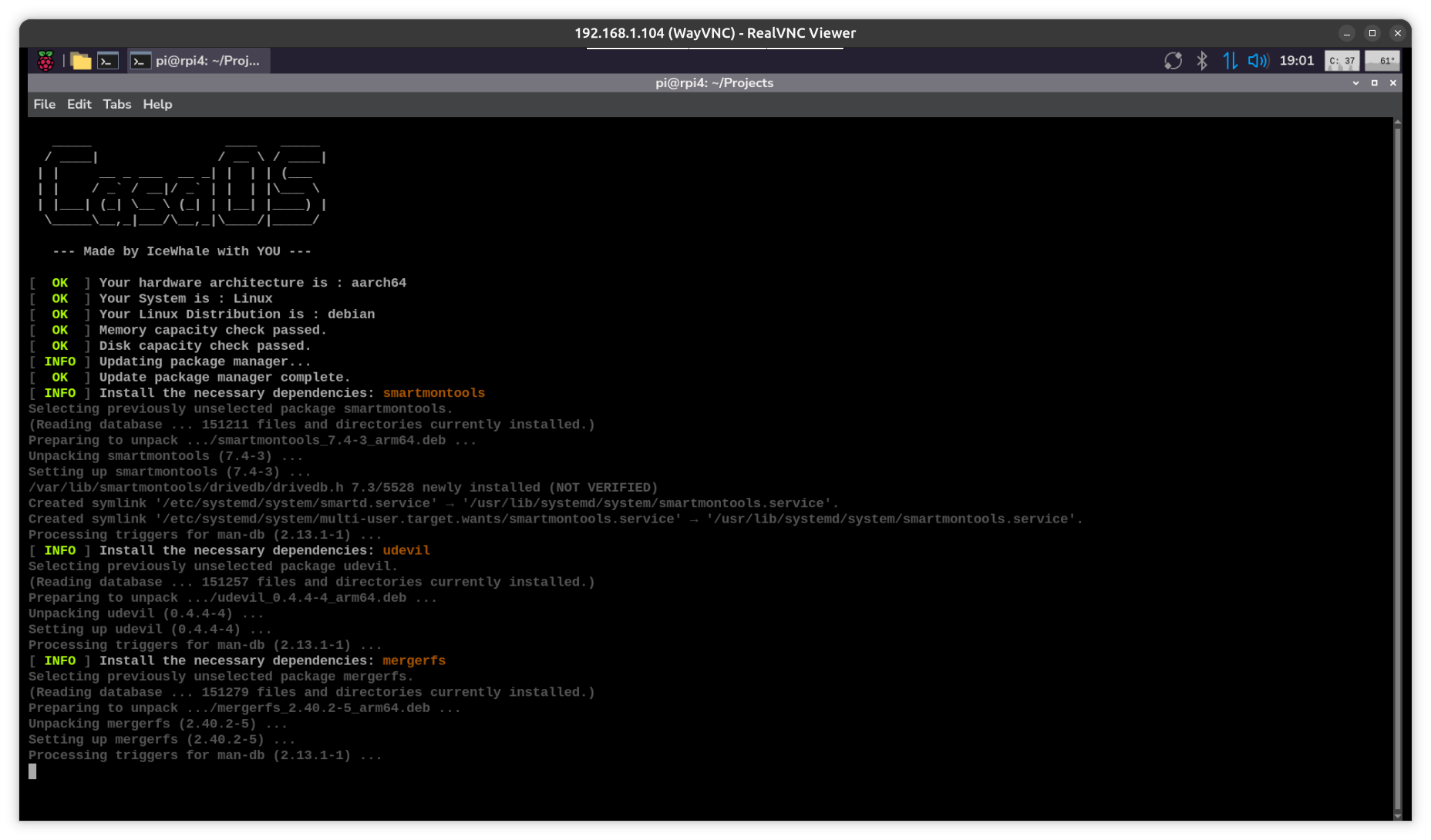
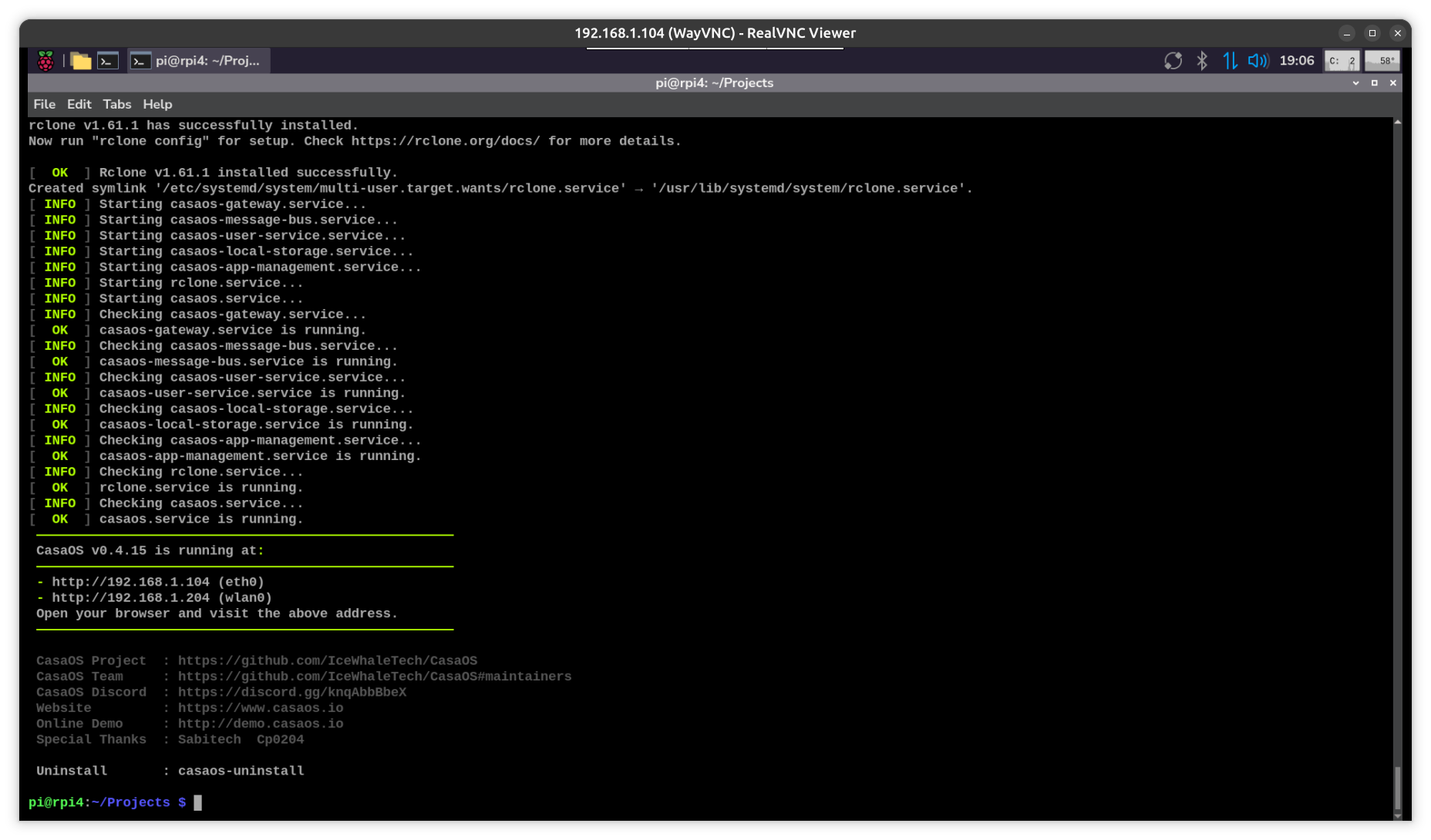
and now check in browser
http://192.168.1.104
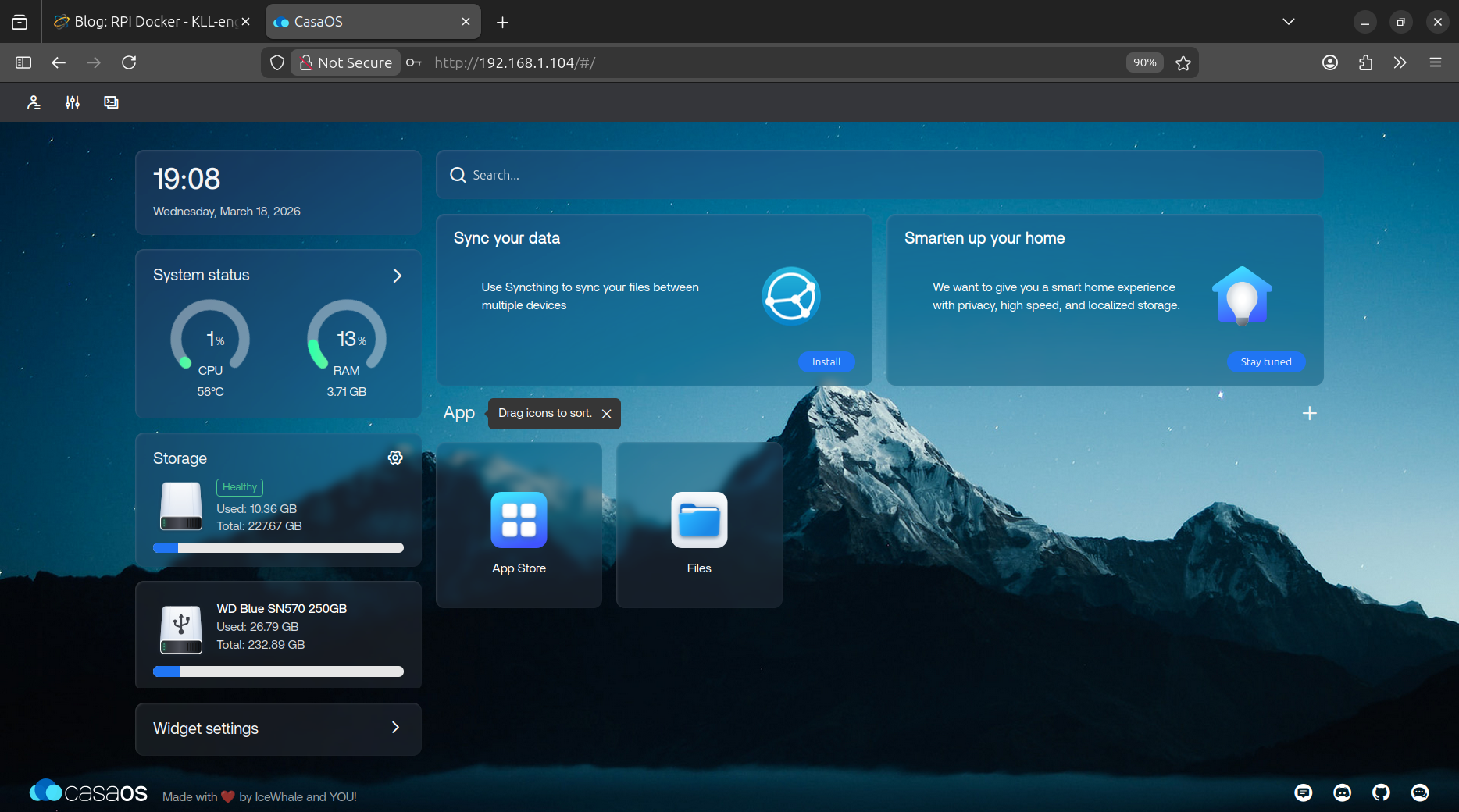
there is a top menu
* account
* settings
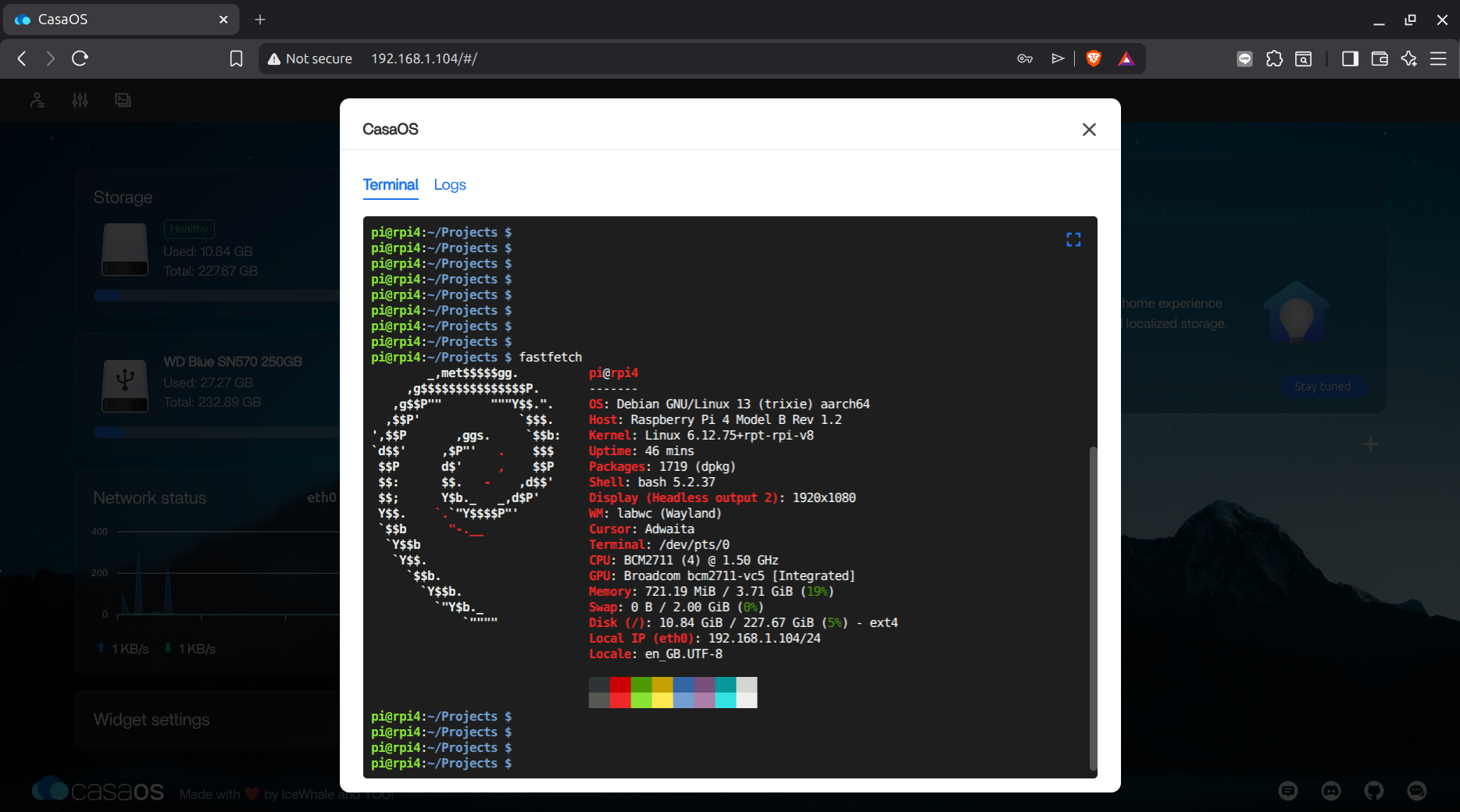
* terminal / logs where via web-terminal have your RPI login
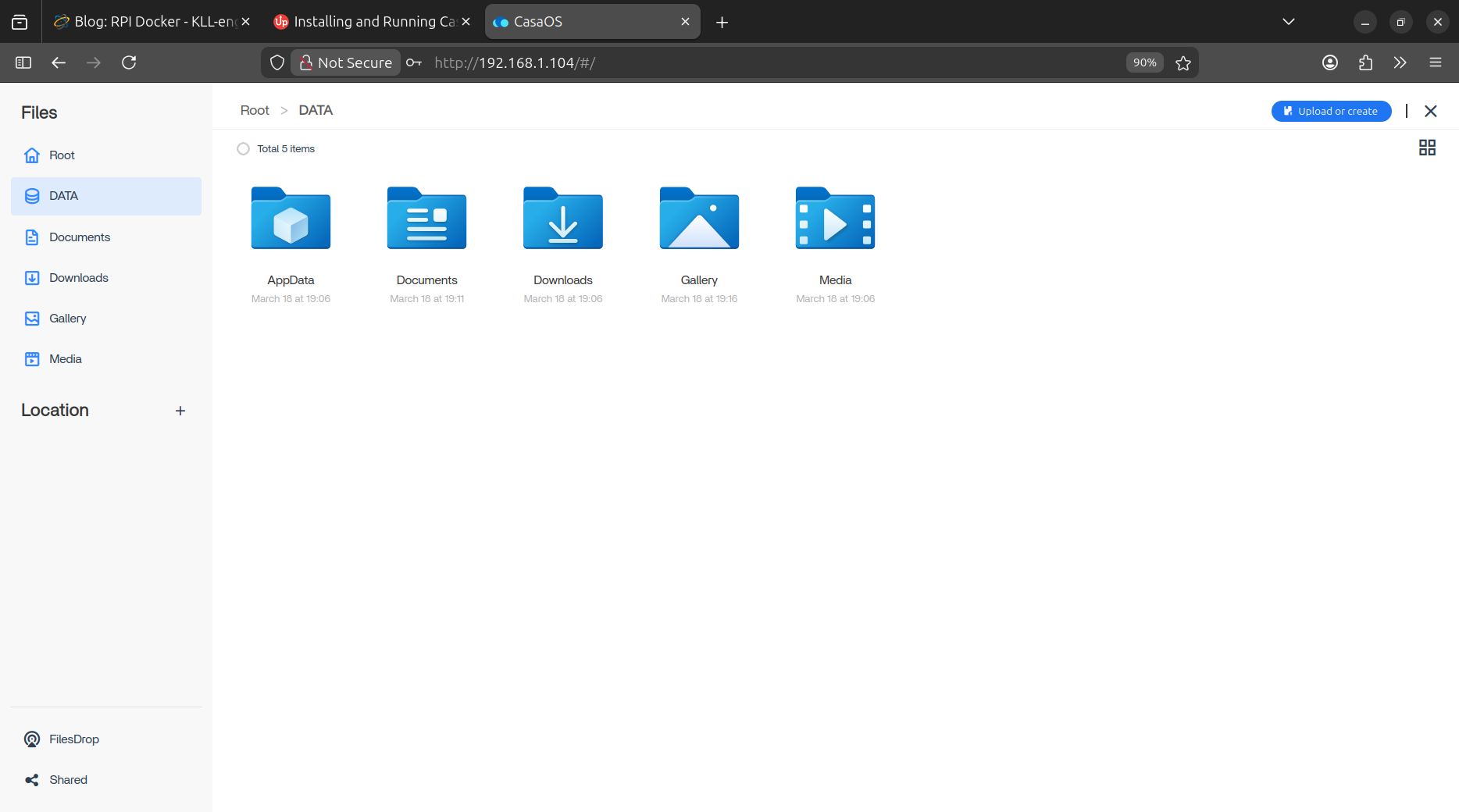
find the Files tile:
upload a old CD
find it at
/DATA/Media/Music/Bee_gees_the very best/
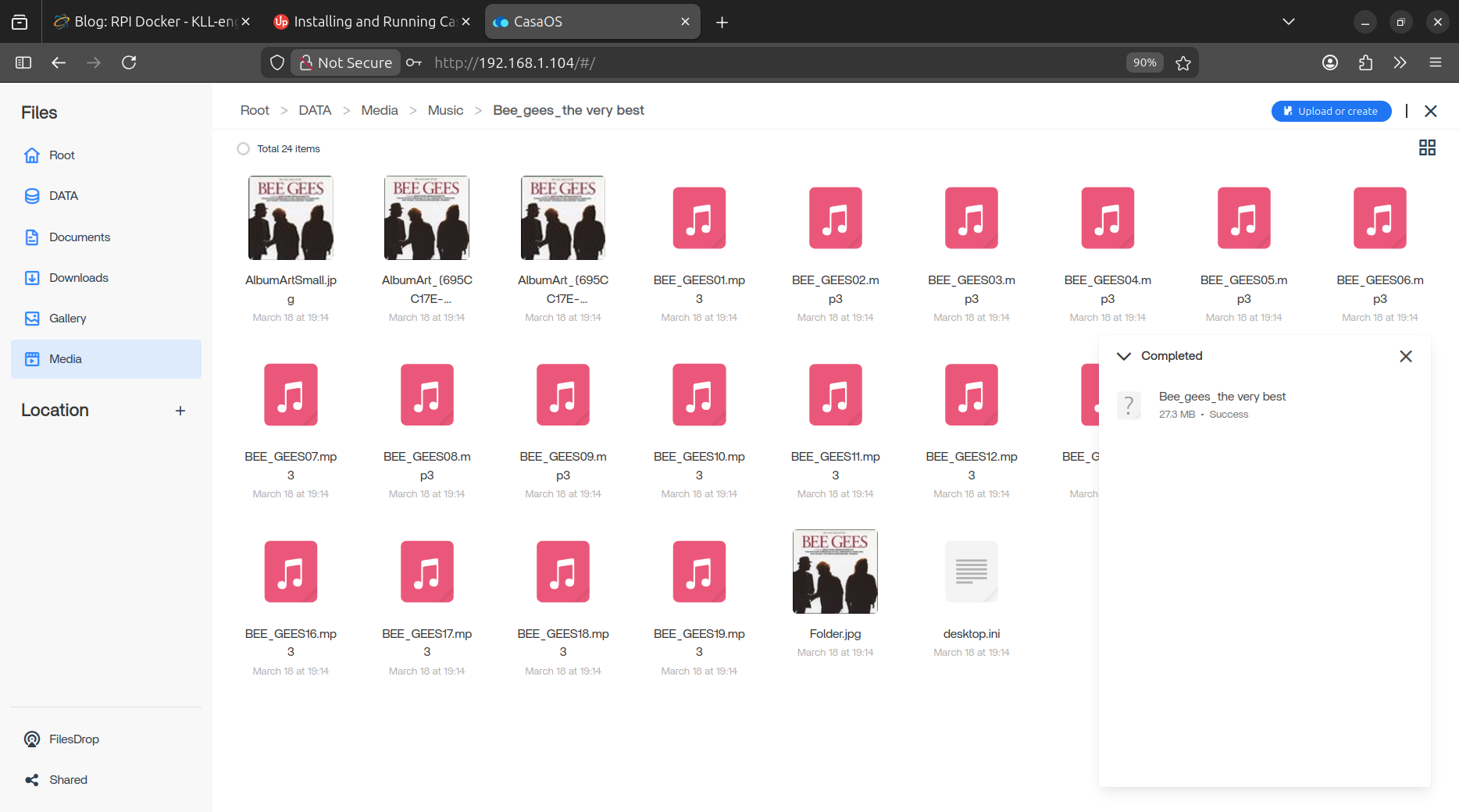
yes, it plays music right from that CasaOS internal filesystem
to my PC firefox browser to HDMI Monitor
the RPI4 itself is headless and via VNC can not play music..
BUT you can link a Bluetooth speaker as wifi sound hardware
now try some more things inside 'pure' CasaOS
try to
* upload movie to DATA/Media/Video/ : ( .mp4) plays fine
* DATA/Gallery/ upload several pictures / nice menu / but no autoplay
* DATA/Documents a .txt and a .html
well .html can not call to browser just edit as text / yes, i miss something to handle links
what can do is download it and click ( show it ) it from there
while that is just one click more i have here the problem that BRAVE browser complains about download from unsecure source...
to download anyway one click more.
there is a way to add a link on the dashboard, find the big
[ + ]
* install customized app
* add external link
ok, so much file Files
CasaOS is a web server ( installed linux app )
but it add installs Docker ( but 'pure' not uses it )
here comes the tile App Store
that is what makes CasaOS so powerful
AppStore
( not sure what runs on a 'arm' RPI )
but you can also get even more Docker things:
3rd-party-app-stores
first thing again is install Portainer
what ends up at ( so not need to go via CasaOS menu )
http://192.168.1.104:9000/